




Managing Workspace Members
Managing members in a workspace helps ensure that the right people can submit, approve, and review expenses. This guide walks through how to invite, remove, and update roles for members in New Expensify.
A Workspace member is anyone added to a workspace with one of the following roles:
- Member – Can submit and/or approve expenses.
- Admin – Can manage members, roles, workflows, and settings.
- People Admin – Can manage workspace membership and configure approval workflows. People Admins can add and remove Members and Auditors only, and cannot add or remove Admins or other scoped admin roles. They have read-only access to the workspace overview and edit access to Members and the Approvals section of Workflows. All other workspace editor pages are hidden.
- Auditor – Can view and comment on reports and has read-only access to all workspace editor pages (such as Categories, Tags, Rules, Workflows, and Accounting). Auditors cannot change any workspace settings or take workflow actions such as approving, paying, or taking control.
Invite Members to a Workspace
To invite someone to your workspace:
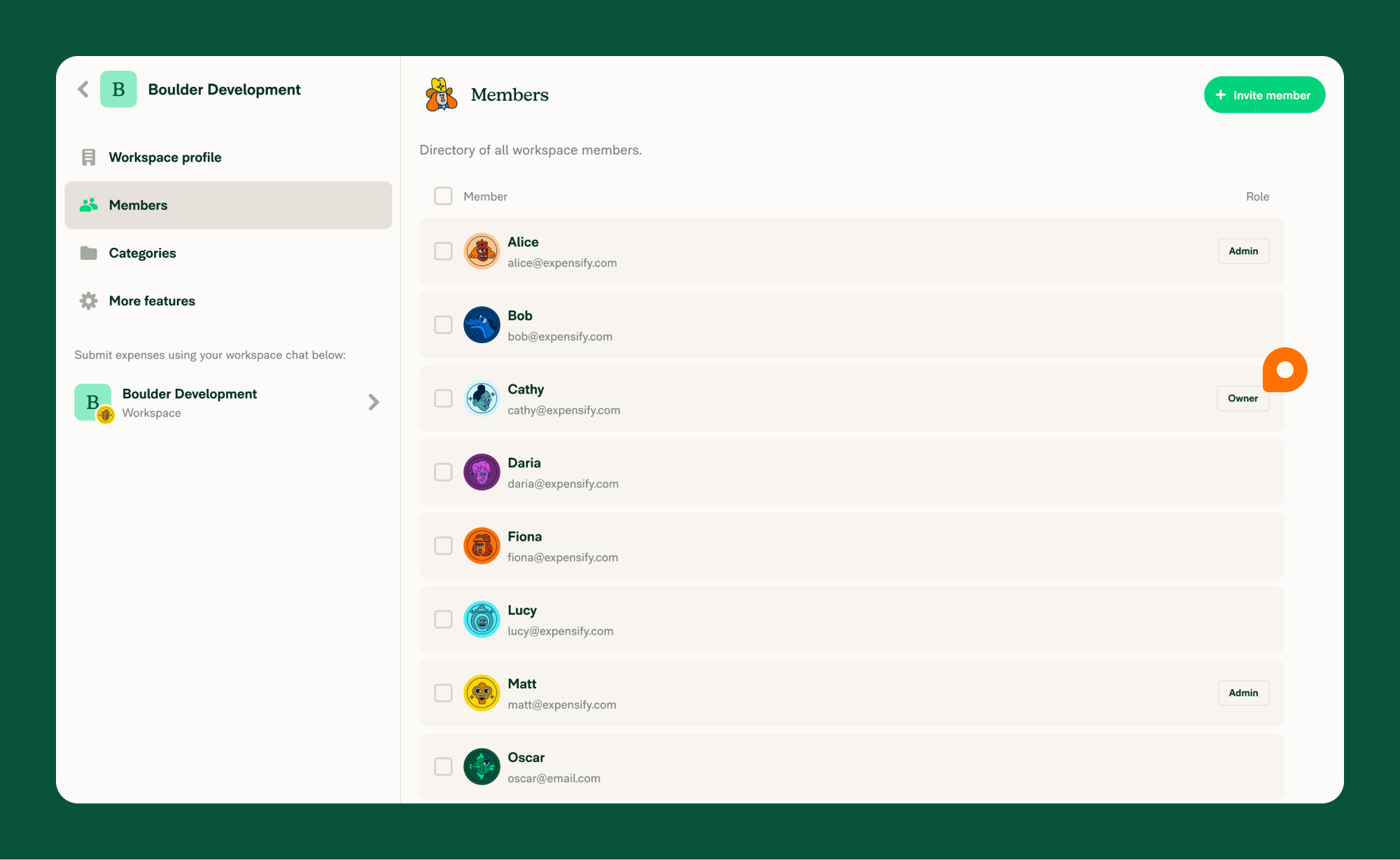
- Go to Workspaces > [Workspace Name] > Members.
- Click Invite Member.
- Search for the user by name, email, or phone number.
- (Optional) Click Role to change the default role (Member).
- (Optional) Add a message to the invitation.
- Click Invite.
Tip: You can also invite members under Settings > Profile by clicking Share to send the workspace’s URL or QR code.
Note: Workspace Admins and People Admins can invite members. People Admins can only invite users as Members or Auditors — they cannot invite Admins or other scoped admin roles.
Filter Workspace Members by Role
You can filter the member list by role to quickly find specific groups of members.
- Go to Workspaces > [Workspace Name] > Members.
- Click the role filter dropdown at the top of the member list.
- Select one of the available roles:
- All members – Shows all workspace members (default).
- Admins – Shows only members with the Admin role.
- Approvers – Shows only members who are designated approvers.
- Auditors – Shows only members with the Auditor role (Control workspaces only).
The member list updates immediately to show only members matching the selected role. You can also combine the role filter with the search bar to narrow results further.
If no members match the selected filter, an empty state is displayed with the message: “No members match this filter.”
Remove Workspace Members
If someone no longer needs access to your workspace, you can remove them individually or in bulk to keep your member list up to date.
Note: Workspace Admins and People Admins can remove members. People Admins can only remove Members and Auditors — they cannot remove Admins or other scoped admin roles.
Remove a Single Member
- Go to Workspaces > [Workspace Name] > Members.
- Click the member’s name.
- In the right-hand panel, click Remove from Workspace.
- Confirm by clicking Remove.
Remove Multiple Members
- Go to Workspaces > Members.
- Select the checkboxes next to the members you want to remove.
- Click the green dropdown arrow in the top-right.
- Choose Remove Member(s).
- Confirm by clicking Remove.
Change a User’s Role
- Go to Workspaces > Members.
- Click the member’s name.
- In the right-hand panel, click Roles.
- Select the new role and confirm.
Note: People Admins can change a member’s role between Member and Auditor only. Granting or removing the Admin role or any scoped admin role (such as Card Admin, People Admin, or Payments Admin) requires a Workspace Admin.
Transfer Workspace Ownership
To transfer ownership to another Admin:
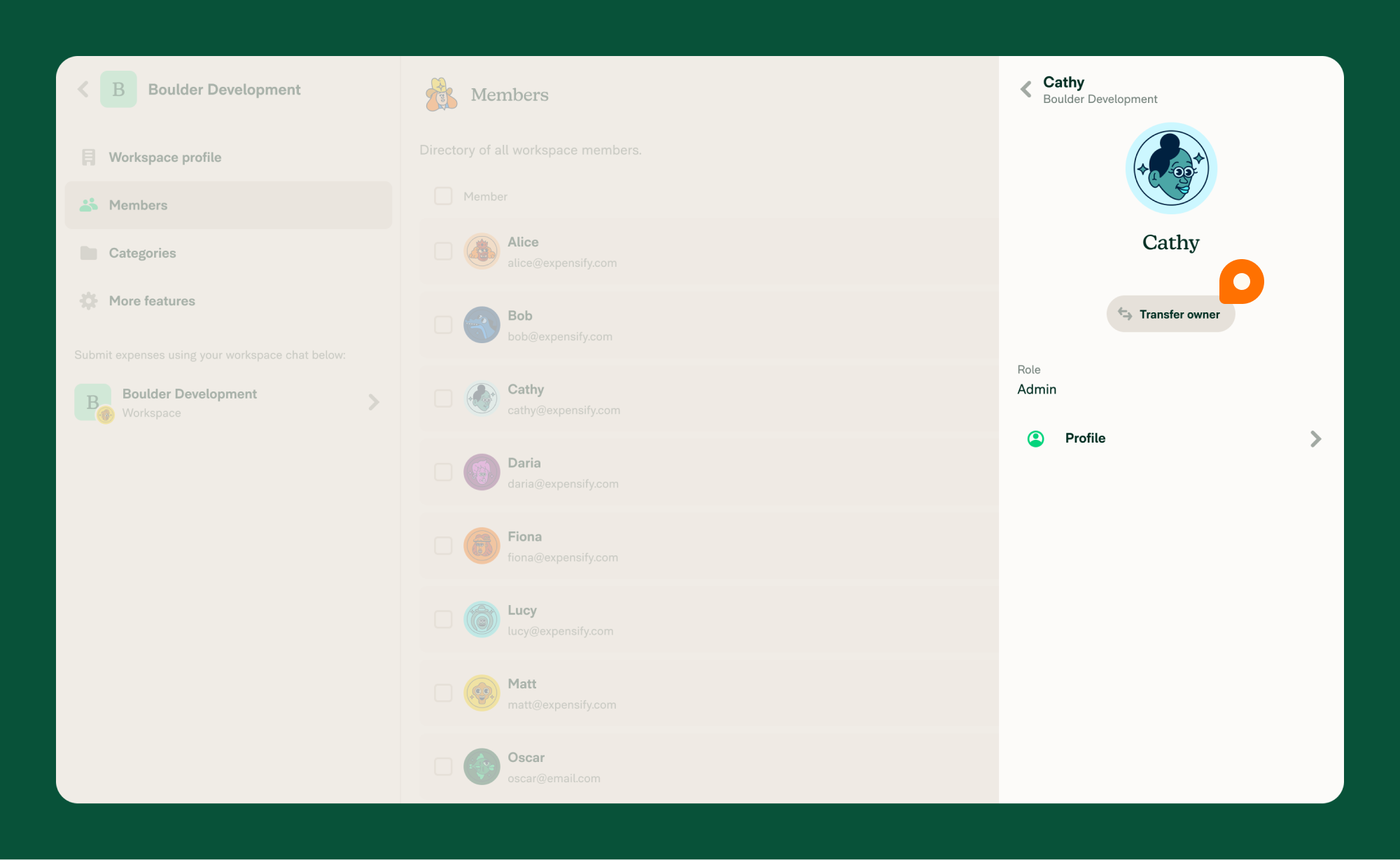
- Go to Workspaces > Members.
- Click the current Owner (identified with a tag).
- Click Transfer Owner in the right-hand panel.
- Click Continue to confirm.
After the transfer, the initiating user becomes the new Owner.
Invite Multiple Members via Spreadsheet
- Go to Workspaces > Members.
- Click the three-dot menu in the top-right.
- Select Import via Spreadsheet.
- Drag and drop your file or click Upload File to browse.
Note: Use this spreadsheet import template to ensure proper formatting.
FAQ
Why can’t I add someone to a workspace?
You must be a Workspace Admin, and the email or phone number of the individual you’re inviting must be valid and correctly formatted.
Can I invite multiple members to a workspace at the same time?
Yes. Use the search tool during invite or import members using a spreadsheet (see the Invite Multiple Members via Spreadsheet section above.


